Monday, November 11, 2013
Some jQuery getters are setters as well
A couple of days ago I ran into an interesting characteristic of jQuery -
Some methods which are 'getters' are also 'setters' behind the scenes.
I know this sounds weird, and you might even be wondering why the hell this matters... Just keep reading and I hope you'll understand... :)
If you call the element dimension methods in jquery (which are height(), innerHeight(), outerHeight(), width(), innerWidth() & outerWidth() ) you'll probably be expecting it to just check the javascript object properties using simple javascript and return the result.
The reality of this is that sometimes it needs to do more complicated work in the background...
The problem :
If you have an object which is defined as 'display:none', calling 'element.clientHeight' in javascript, which should return the object's height will return '0'. This is because a 'hidden' object using 'display:none' isn't rendered on the screen and therefore the client never knows how much space it visually actually takes, leading it to think it's dimensions are 0x0 (which is right in some sense).
How jquery solves the problem for you :
When asking jquery what the height of a 'display:none' element is (by calling $(element).height() ), it's more clever than that.
It can identify that the element is defined as 'display:none', and takes some steps to get the actual height of the element :
- It copies all the element's styles to a temporary object
- Defines the object as position:absolute
- Defines the object as visibility:hidden
- Removes 'display:none' from the element. After this, the browser is forced to 'render' the object, although it doesn't actually display it on the screen because it is still defined as 'visibility:hidden'.
- Now the jquery knows what the actual height of your element is
- Swaps back the original styles and returns the value.
Okay, so now that you know this, why should you even care ?
The step that jquery changes the styles of your element without you knowing, which forces the browser to 'render' the element in the background can take time. Not a lot of time, but still take some time. Probably a few milliseconds. Doing this once wouldn't matter to anyone, but doing this many times, lets say in a loop, might cause performance issues.
Real life!
I recently found a performance issue on our site that was caused by this exact reason. The 'outerHeight()' method was being called in a loop many times, and fixing this caused an improvement of ~200ms. (Why saving 200ms can save save millions of dollars!)
I will soon write a fully detailed post about how I discovered this performance issue, how I tracked it down, and how I fixed it.
Always a good tip!
Learn how your libraries are working under the hood. This will give you great power and a great understanding of how to efficiently use them.

Saturday, November 9, 2013
Humanity wasted 14,526 years watching Gangnam Style
"Humanity wasted 14,526 years watching Gangnam Style"...
This was the title of a link I posted on Hacker News about a week ago which linked to a website I created with a friend of mine (Gil Cohen) - http://www.WastedHumanity.com

It seems like I managed to really annoy some people, and some even claim to hate me!
(The whole discussion can be seen here : https://news.ycombinator.com/item?id=6663474)
Well, I just wanted to say about this whole thing a few words -
The whole idea of this site was only a joke. Just me and my friend sitting in the living room one boring Friday watching some silly YouTube videos ourselves when I started thinking about how many times these videos were watched. It amazed me, so I started calculating it in my head. The programmer I am wouldn't allow me to just calculate this data manually so I started building a site that would do it for me. When we saw the numbers we were amazed and started joking about the things we could have done instead of this 'wasted time'...
I didn't mean to laugh about how you decide to spend your time or make fun of anyone in anyway. I myself 'waste' a lot of time on YouTube, sometimes on silly videos while doing nothing, and sometimes countless hours listening to music as I work. I added at least a few views myself to each one of the videos seen on the site, and many more not on the site. I don't see that time as 'wasted'.
I also know the calculation isn't a bit accurate, and that each (or at least most) of the facts on that site wasn't accomplished by one person so in reality it took much more than written.
So, sorry if I hurt you. I know I made a lot of people laugh in the process, so it was totally worth it! :)
This was the title of a link I posted on Hacker News about a week ago which linked to a website I created with a friend of mine (Gil Cohen) - http://www.WastedHumanity.com

It seems like I managed to really annoy some people, and some even claim to hate me!
(The whole discussion can be seen here : https://news.ycombinator.com/item?id=6663474)
Well, I just wanted to say about this whole thing a few words -
The whole idea of this site was only a joke. Just me and my friend sitting in the living room one boring Friday watching some silly YouTube videos ourselves when I started thinking about how many times these videos were watched. It amazed me, so I started calculating it in my head. The programmer I am wouldn't allow me to just calculate this data manually so I started building a site that would do it for me. When we saw the numbers we were amazed and started joking about the things we could have done instead of this 'wasted time'...
I didn't mean to laugh about how you decide to spend your time or make fun of anyone in anyway. I myself 'waste' a lot of time on YouTube, sometimes on silly videos while doing nothing, and sometimes countless hours listening to music as I work. I added at least a few views myself to each one of the videos seen on the site, and many more not on the site. I don't see that time as 'wasted'.
I also know the calculation isn't a bit accurate, and that each (or at least most) of the facts on that site wasn't accomplished by one person so in reality it took much more than written.
So, sorry if I hurt you. I know I made a lot of people laugh in the process, so it was totally worth it! :)
Monday, October 21, 2013
A tale of asp.net, IIS 7.5, chunked responses and keep-alive
A while ago I posted about chunked responses - what they are and the importance of them. It turns out that we (where I work) were getting it all wrong.
We implemented chunked responses (or at least thought so) quite a while ago, and it WAS working, in the beginning, but all of a sudden stopped.
How did I come to realize this ?
While analyzing waterfall charts of our site, which I've been doing regularly for quite a while now, I realized that the response doesn't look chunked.
It's not trivial realizing this from a waterfall chart, but if you look closely and you're familiar with your site's performance you should notice this. Since the first chunk we send the client is just the html 'head' tag, this requires almost no processing so it can be sent to the client immediately, and it immediately causes the browser to start downloading resources that are requested in the 'head' tag. If a response is chunked, in the waterfall, you should see the resources starting to be downloaded before the client even finishes downloading the html response from the site.
A proper chunked response should look like this :
 v
v
If you look closely you will realize that the response took long to download, which doesn't match the internet connection we chose for this test, which means the download didn't actually take that long, but the server sent part of the response, processed more of it, and then sent the rest.
Here's an image of a response that isn't chunked :

You can see that the client only starts downloading the resources required in the 'head' after the whole page is downloaded. We could've saved some precious time here, and have our server work parallel to the client that is downloading resources from our CDN.
What happened ?
Like I said, once this used to work and now it doesn't. We looked back at what was done lately and realized that we switched load balancers recently. Since we weren't sending the chunks properly, the new load balancer doesn't know how to deal with this and therefore just passes the request on without chunks to the client.
In order to investigate this properly, I started working directly with the IIS server...
What was happening ?
I looked at the response with Fiddler and WireShark and realized the response was coming in chunks, but not 'properly'. This means the 'Transfer-Encoding' header wasn't set, and the chunks weren't being received in the correct format. The response was just being streamed, and each part we had we passed on to the client. Before switching load balancer, it was being passed like this to the client, and luckily most clients were dealing with this gracefully. :)
So why weren't our chunks being formatted properly ?
When using asp.net, mvc, and IIS 7.5 you shouldn't have to worry about the format of the chunks. All you need to do is call 'HttpContext.Response.Flush()' and the response should be formatted correctly for you. For some reason this wasn't happening...
Since we're not using the classic Microsoft MVC framework, but something we custom built here, I started digging into our framework. I realized it had nothing to do with the framework, and was more low level in Microsoft's web assemblies, so I started digging deeper into Microsoft's code.
Using dotPeek, I looked into the code of 'Response.Flush()'...
This is what I saw :

As you can see, the code for the IIS 6 worker is exposed, but when using IIS7 and above it goes to some unmanaged dll, and that's where I stopped going down that path.
I started looking for other headers that might interfere, and started searching the internet for help... Couldn't find anything on the internet that was useful (which is why I'm writing this...), so I just dug into our settings.
All of a sudden I realized my IIS settings had the 'Enable HTTP keep-alive' setting disabled. This was adding the header 'Connection: close' which was interfering with this.
I read the whole HTTP 1.1 spec about the 'Transfer-Encoding' and 'Connection' headers and there is no reference to any connection between the two. Whether it makes sense or not, It seems like IIS 7.5 (I'm guessing IIS 7 too, although I didn't test it) doesn't format the chunks properly, nor add the 'Transfer-Encoding' header if you don't have the 'Connection' header set to 'keep-alive'.
Jesus! @Microsoft - Couldn't you state that somewhere, in some documentation, or at least as an error message or a warning to the output when running into those colliding settings?!!
Well, what does this all mean ?
The 'Connection' header indicates to the client what type of connection it's dealing with. If the connection is set to 'Close' it indicates that the connection is not persistent and will be closed immediately when it's done sending. When specifying 'keep-alive' this means the connection will stay opened, and the client might need to close it.
In the case of a chunked response, you should indicate the last chunk by sending a chunk with size '0', telling the client it's the end, and they should close the connection. This should be tested properly to make sure you're not leaving connections hanging and just wasting precious resources on your servers.
(btw - by not specifying a connection type, the default will be 'Keep-Alive').
If you want to take extra precaution, and I suggest you do, you can add the 'Keep-Alive' header which indicates that the connection will be closed after a certain amount of time of inactivity.
Whatever you do, make sure to run proper tests under stress/load to make sure your servers are managing their resources correctly.
Additional helpful resources :
- 'Keep-Alive' header protocol
- HTTP/1.1 headers spec
Thursday, September 19, 2013
Prefetching dns lookups
Since I've been working hard on latency and client side performance at my company, I've been analyzing several pages a day of our site and other big sites on the web, using mainly WebPageTest, looking for ways to optimize their performance. Viewing hundreds of waterfall charts, your eyes tend to get used to looking at the same kind of patterns and the same kind of requests.
The DNS resolution, or 'DNS lookup' phase in the request was something I always thought should just be ignored. I mean, it pissed the hell out of me that it was there, but I honestly thought that there was nothing I can do about it...
A while ago I thought about simply inserting the IP addresses of our CDN domains and other sub-domains we might have directly in the code to solve this. This is bad for 2 main reasons:
1. If your IP changes for some reason it forces you to change your code accordingly. (maybe not a scenario that should happen often or even at all, but still might)
2. (and this is much more important!) When using a CDN service like akamai, the dns lookup will give you different results according to where you are in the world. Since they have servers strategically placed in different geographical locations, a user from the USA will probably get a different IP than a user from Europe or Asia.
Well, recently that all changed - I realized that you can direct the browser to prefetch the dns lookup at the beginning of the request, so that when the browser runs into the new domain it won't have to lookup up the dns again.
To do this, all you need to add is this tag at the beginning of your page :
Doing this on the domain you're currently on has no effect since the browser already did the dns lookup, but it can help when you know that in your page source you have calls to multiple sub-domains (for cdn's), calls to 3rd party libraries or ajax calls you make to other domains. Even if you know of a call that will happen on the next page the user lands on, you should still prefetch the dns lookup since the browser caches the results for a couple of minutes at least, and this should have no effect on the current page performance.
The most common response I get when telling people about this, or reading about this on the internet is that the DNS lookup alone doesn't take that long. From my tests, I can say that the average DNS lookup time is under 100ms, although usually above 20ms, and sometimes it passes the 100ms. Even though this isn't the common case, you can still make sure time is saved for those 'unlucky' users.
...and besides, this is one of the easiest performance wins you have - It requires almost no work to implement!
Just while writing this article I happened to test facebook.com, and check out how long the DNS lookup took on those 3 last requests!

(You can view the full results of this test here : http://www.webpagetest.org/result/130919_17_B60/1/details/) Yep, you better believe your eyes - The DNS lookup on those last requests seemed to take 2 seconds!!
Now, I don't know why they took 2 seconds in that case, and I bet this is really rare, but it still happens sometimes, you can't argue with that.
But hey, If they would've requested to prefetch that last domain, it would still take that long! That's right, but it would've started much earlier, and could've still save hundreds of valuable milliseconds.
So, my suggestions to you is, lets say you have 4 sub-domains for CDN's and you know you're going to call facebook's api at some point, you should put something like this in the head tag of your source :
This will tell the browser to immediately start the dns fetching so that when the browser reaches those domains it will have the ip stored in the cache already.
If you want to see what it looks like when you're prefetching the dns lookup properly, take a look at these WebPageTest results from amazon : http://www.webpagetest.org/result/130919_ZQ_J6V/1/details/
You can clearly see that the dns lookup part of the request on some of the domains happen a lot before the browser reaches the actual resource on the timeline, and when it does, it doesn't need to wait for the dns lookup.
As usual, great work amazon! :)
Some more resources on the subject :
- MDN - Controlling DNS prefetching
- Chromium Blog - DNS prefetching
- Performance Calendar - Speed up your site using DNS prefetching
Wednesday, September 4, 2013
All about http chunked responses
A short background on HTTP and the 'Content-Length' header :
When sending requests over HTTP (hence, 'the web'), we send an HTTP request which consists of two main parts - the header of the request and the body. The header defines various details of the request body (e.g.: encoding type, cookies, request method, etc.). One of these details is the 'Content-Length' specifying the size of the body. If you're building a website and aren't specifying this explicitly then chances are the framework you're using is doing this for you. Once you send the response to the client, the framework measures the size of the response and adds it to this header.
In a normal request, looking at the headers with FireBug or Chrome developer tools, it should look like this (looking at google.com) :

So, what is a 'chunked response' ?
A 'chunked' response means that instead of processing the whole page, generating all of the html and sending it to the client, we can split the html into 'chunks' and send one after the other, without telling the browser how big the response will be ahead of time.
Why would anyone want to do this ?
Well, some pages on the site can take a long time to process. While the server is working hard to generate the output, the user sees a white screen and the browser is pretty much hopeless during this time with nothing to do and just displays a boring white screen to the user.
The work the server is doing might be to generate a specific part of the content on the page, and we might have a lot ready that we can already give the client to work with. If you have scripts & stylesheets in the <head/> of your page, you can send the first chunk with the 'head' tag html content to the user's machine, then the browser will have something to work with, meaning it will start downloading the scripts and resources it needs and during this time, and your servers can continue crunching numbers to generate the content to be displayed.
You are actually gaining parallelism by sending the client this first chunk without waiting for the rest of the page to be ready!
Taking this further, you can split the page into several chunks. In practice, you can send one chunk with the 'head' of the page. The browser can then start downloading scripts and stylesheets, while your server is processing lets say the categories from your db to display in your header menu/navigation. Then you can send this as a chunk to the browser so it will have something to start rendering on the screen, and your server can continue processing the rest of the page.
Even if the user only sees part of the content, and it isn't enough to work with, the user still gets a 'sense' of better performance - something we call 'perceived performance' which has almost the same impact.
Many big sites are doing this, since this will most definitely improve the client side performance of your site. Even if it's only by a few milliseconds, in the ecommerce world we know that time is money!
How does this work ?
Since the response is chunked, you cannot send the 'Content-Length' response header because you don't necessarily know how long the response will be. Usually you won't know how big the response will be, and even if you do, the browser doesn't care at this point.
So, to notify the browser about the chunked response, you need to omit the 'Content-Length' header, and add the header 'Transfer-Encoding: chunked'. Giving this information to the browser, the browser will now expect to receive the chunks in a very specific format.
At the beginning of each chunk you need to add the length of the current chunk in hexadecimal format, followed by '\r\n' and then the chunk itself, followed by another '\r\n'.
FireBug and Chrome dev tools both combine the chunks for you, so you won't be able to see them as they are really received by the browser. In order to see this properly you will need to use a more low level tool like Fiddler.
This is how the raw response of amazon.com looks like using fiddler :

Note : I marked the required 'Transfer-Encoding: chunked' header, and the first line with the size of the chunk. In this case the first chunk is 0xd7c bytes long, which in human-readable format is 3452 bytes.
Also, it's interesting to note that you cannot really read the first chunk since it's encoded via gzip (which is also automatically decoded when using browser dev tools). When using fiddler, you can see the message at the top telling you this, and you can click it and have it decoded, but then the chunks are removed and you'll see the whole html output.
How can we achieve this with asp.net ?
When you want to flush the content of your site, all you need to do in the middle of a view is call 'HttpContext.Current.Response.Flush()'.
It's that easy! Without you having to worry about it, the .net framework will take care of the details and send the response to the browser in the correct format.
Some things that might interfere with this working properly :
- You might have to configure 'Response.BufferOutput = false;' at the beginning of your request so the output won't be buffered and will be flushed as you call it.
- If you specifically add the 'Content-Length' header yourself then this won't work.
For more helpful resources on chunked responses :
Wikipedia, and the spec details : http://en.wikipedia.org/wiki/Chunked_transfer_encoding
How to write chunked responses in .net (but not asp.net) - http://blogs.msdn.com/b/asiatech/archive/2011/04/26/how-to-write-chunked-transfer-encoding-web-response.aspx
Implementing chunked with IHttpListener - http://www.differentpla.net/content/2012/07/streaming-http-responses-net
When sending requests over HTTP (hence, 'the web'), we send an HTTP request which consists of two main parts - the header of the request and the body. The header defines various details of the request body (e.g.: encoding type, cookies, request method, etc.). One of these details is the 'Content-Length' specifying the size of the body. If you're building a website and aren't specifying this explicitly then chances are the framework you're using is doing this for you. Once you send the response to the client, the framework measures the size of the response and adds it to this header.
In a normal request, looking at the headers with FireBug or Chrome developer tools, it should look like this (looking at google.com) :

So, what is a 'chunked response' ?
A 'chunked' response means that instead of processing the whole page, generating all of the html and sending it to the client, we can split the html into 'chunks' and send one after the other, without telling the browser how big the response will be ahead of time.
Why would anyone want to do this ?
Well, some pages on the site can take a long time to process. While the server is working hard to generate the output, the user sees a white screen and the browser is pretty much hopeless during this time with nothing to do and just displays a boring white screen to the user.
The work the server is doing might be to generate a specific part of the content on the page, and we might have a lot ready that we can already give the client to work with. If you have scripts & stylesheets in the <head/> of your page, you can send the first chunk with the 'head' tag html content to the user's machine, then the browser will have something to work with, meaning it will start downloading the scripts and resources it needs and during this time, and your servers can continue crunching numbers to generate the content to be displayed.
You are actually gaining parallelism by sending the client this first chunk without waiting for the rest of the page to be ready!
Taking this further, you can split the page into several chunks. In practice, you can send one chunk with the 'head' of the page. The browser can then start downloading scripts and stylesheets, while your server is processing lets say the categories from your db to display in your header menu/navigation. Then you can send this as a chunk to the browser so it will have something to start rendering on the screen, and your server can continue processing the rest of the page.
Even if the user only sees part of the content, and it isn't enough to work with, the user still gets a 'sense' of better performance - something we call 'perceived performance' which has almost the same impact.
Many big sites are doing this, since this will most definitely improve the client side performance of your site. Even if it's only by a few milliseconds, in the ecommerce world we know that time is money!
How does this work ?
Since the response is chunked, you cannot send the 'Content-Length' response header because you don't necessarily know how long the response will be. Usually you won't know how big the response will be, and even if you do, the browser doesn't care at this point.
So, to notify the browser about the chunked response, you need to omit the 'Content-Length' header, and add the header 'Transfer-Encoding: chunked'. Giving this information to the browser, the browser will now expect to receive the chunks in a very specific format.
At the beginning of each chunk you need to add the length of the current chunk in hexadecimal format, followed by '\r\n' and then the chunk itself, followed by another '\r\n'.
FireBug and Chrome dev tools both combine the chunks for you, so you won't be able to see them as they are really received by the browser. In order to see this properly you will need to use a more low level tool like Fiddler.
This is how the raw response of amazon.com looks like using fiddler :

Note : I marked the required 'Transfer-Encoding: chunked' header, and the first line with the size of the chunk. In this case the first chunk is 0xd7c bytes long, which in human-readable format is 3452 bytes.
Also, it's interesting to note that you cannot really read the first chunk since it's encoded via gzip (which is also automatically decoded when using browser dev tools). When using fiddler, you can see the message at the top telling you this, and you can click it and have it decoded, but then the chunks are removed and you'll see the whole html output.
How can we achieve this with asp.net ?
When you want to flush the content of your site, all you need to do in the middle of a view is call 'HttpContext.Current.Response.Flush()'.
It's that easy! Without you having to worry about it, the .net framework will take care of the details and send the response to the browser in the correct format.
Some things that might interfere with this working properly :
- You might have to configure 'Response.BufferOutput = false;' at the beginning of your request so the output won't be buffered and will be flushed as you call it.
- If you specifically add the 'Content-Length' header yourself then this won't work.
For more helpful resources on chunked responses :
Wikipedia, and the spec details : http://en.wikipedia.org/wiki/Chunked_transfer_encoding
How to write chunked responses in .net (but not asp.net) - http://blogs.msdn.com/b/asiatech/archive/2011/04/26/how-to-write-chunked-transfer-encoding-web-response.aspx
Implementing chunked with IHttpListener - http://www.differentpla.net/content/2012/07/streaming-http-responses-net
Wednesday, August 14, 2013
My talk on Latency & Client Side Performance
As an engineer in the 'Core team' of the company, we are responsible for making the site as available as we can, while having great performance and standing heavy load. We set high goals, and we're working hard to achieve them.
Up until a while ago, we were focusing mainly on server side performance - Looking at graphs under various load and stress tests, and seeing how the servers perform, each time making more and more improvements in the code.
A few weeks ago we started putting a lot of focus on latency and client side performance. I have taken control in this area and am following the results and creating tasks that will improve the performance every day.
Since I've been reading a lot about it lately, and working on it a lot, I decided to create a presentation on the subject to teach others some lessons learned from the short time I've been at it...
Here are the slides : http://slid.es/gillyb/latency
There are many details you'll be missing by just looking at the slides, but if this interests you than you should take a look anyway. The last slide also has many of the references from which I took the information for the presentation. I strongly recommend reading them. They are all interesting! :)
I might add some future posts about specific client side performance tips and go much more into details.
I'm also thinking about presenting this at some meetup that will be open to the public... :)
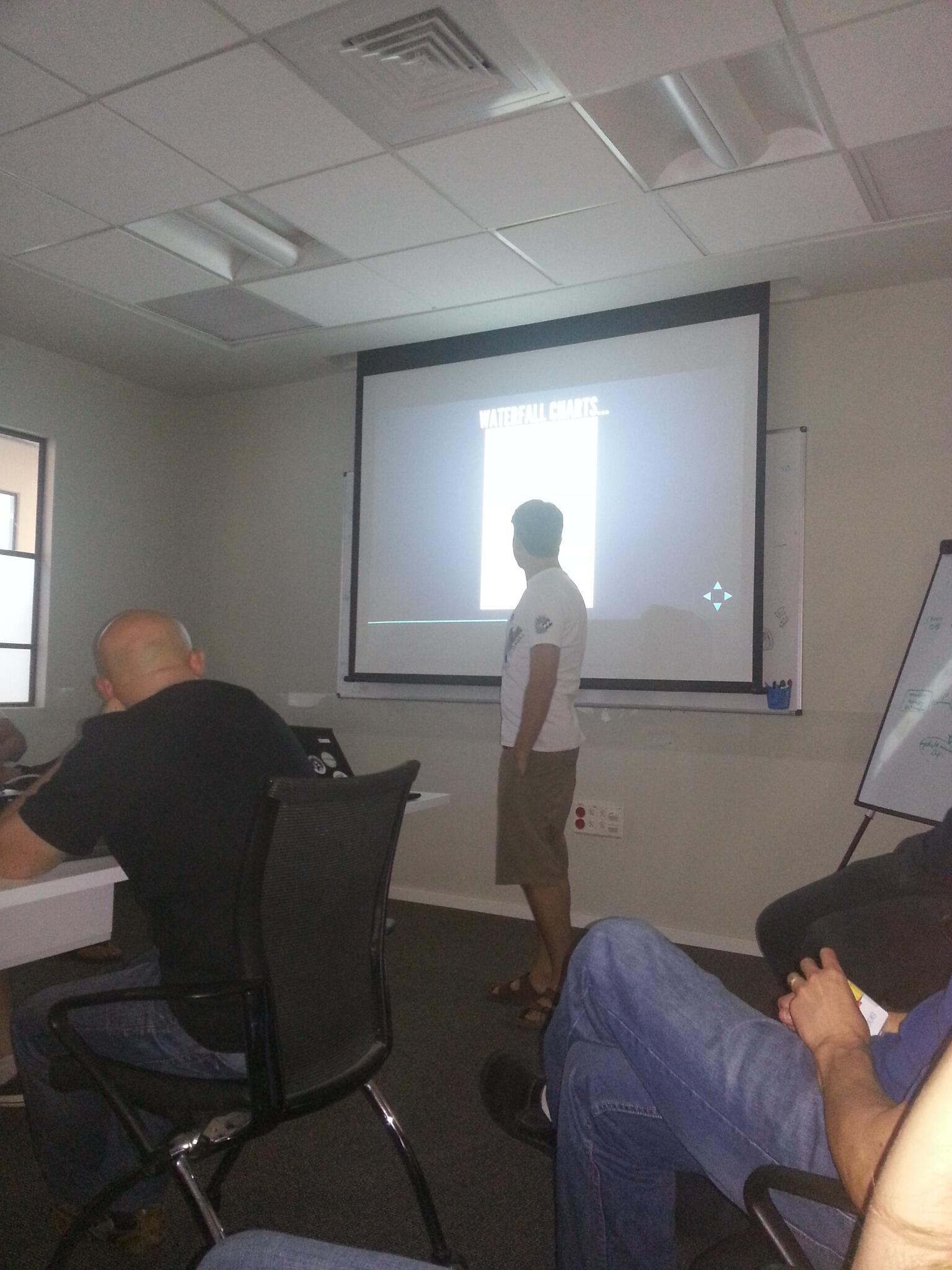
Up until a while ago, we were focusing mainly on server side performance - Looking at graphs under various load and stress tests, and seeing how the servers perform, each time making more and more improvements in the code.
A few weeks ago we started putting a lot of focus on latency and client side performance. I have taken control in this area and am following the results and creating tasks that will improve the performance every day.
Since I've been reading a lot about it lately, and working on it a lot, I decided to create a presentation on the subject to teach others some lessons learned from the short time I've been at it...
Here are the slides : http://slid.es/gillyb/latency
There are many details you'll be missing by just looking at the slides, but if this interests you than you should take a look anyway. The last slide also has many of the references from which I took the information for the presentation. I strongly recommend reading them. They are all interesting! :)
I might add some future posts about specific client side performance tips and go much more into details.
I'm also thinking about presenting this at some meetup that will be open to the public... :)
Saturday, July 27, 2013
Improving website latency by converting images to WebP format
A couple of years ago Google published a new image format called WebP (*.webp). This format is supposed to be much smaller in size, without losing from the quality (or at least no noticeable quality). You can convert jpeg images to webp without noticing the difference, with a smaller image file size and even support transparency.
According to Ilya Grigorik (performance engineer at google) - you can save 25%-35% on jpeg and png formats, and 60%+ on png files with transparency! (http://www.igvita.com/2013/05/01/deploying-webp-via-accept-content-negotiation/)
Why should we care about this ?
Your web site latency is super important! If you don't measure it by now, then you really need to start. In commerce sites it's already been proven that better latency directly equals more revenue (Amazon makes 1% more in revenue by saving 100ms).
How is this new image format related to latency ?
If your site has many images, then your average user is probably spending a fair amount of time downloading those images. Think of a site like pinterest which is mostly contrived of user based images, then the user is downloading many new images with each page view.
While on a PC at your home, with a DSL connection this might not seem like a lot, but we all know that a big percentage of our users are using mobile devices, with 3G internet connection, which is much slower and they suffer from much longer download times.
What are our options ?
Just converting all our images to WebP is clearly not an option. Why ? Well, some people in the world have special needs. In this case i'm referring to people with outdated browsers (We all know who they are!).
BUT, we can still let some of our users enjoy the benefit of a faster site, and this includes many mobile users as well!
We will need to make some changes to our site in order for us to support this, so lets see what we can do -
(Technical details on implementation at the end)
Option #1 - Server side detection :
When our server gets the request, we can detect if the user's browser supports webp, and if so reply with an html source that has '*.webp' image files in it.
This option comes with a major downside - You will no longer be able to cache the images on the server (via OutputCaching or a CDN like Akamai) since different users can get a different source code for the same exact page.
Option #2 - Server side detection of image request :
This means we can always request the same file name, like 'myImage.png'. Add code to detect if this client can support webp then just send it the same file but in webp format.
This option has a similar downside - Now we can cache the html output, but when sending the image files to the user we must mark them as 'non-cacheable' too since the contents can vary depending on the user's browser.
Option #3 - Client side detection :
Many big sites defer the downloading of images on the client only until the document is ready. This is also a trick to improve latency - It means the client will download all the resources they need, the browser will render everything, and only then start downloading the images. Again, for image intensive sites this is crucial, since it allows the user to start interacting with the site before waiting for the downloading of many images that might not be relevant at the moment.
This is done by inserting a client side script that will detect if the browser supports webp format. If so, you can change the image requests to request the *.webp version of the image.
The downside to this option is that you can only use it if the browser supports the webp format.
(btw - you can decide to go extreme with this and always download the webp version, and if the client doesn't support it, there are js decoders that will allow you to convert the image on the client. This seems a little extreme to me, and you probably will be spending a lot of time decoding in js anyway).
The gritty details -
How can we detect if our browser supports webp ?
Don't worry, there's no need here for looking up which browsers support webp and testing against a list. Browsers that support webp format should claim they do when requesting images. We can see this done by Chrome (in the newer versions) :
 You can see in the request headers 'Accept: image/webp'
How do we do this on the client ?
In javascript we don't have access to the request headers, so we need to get creative.
There is a trick that can be done by actually rendering an image on the client, using base64 to store the image in the code, and then detect if the browser loaded the image successfully.
This will do the trick :
How do we convert our images to webp format ?
We can do it manually using Google's converter - https://developers.google.com/speed/webp/docs/cwebp
Doing it programatically depends on what language you're using.
There's a wrapper for C# - http://webp.codeplex.com/
(and there are more for other languages, but not all - I'm actually looking for a java wrapper, and couldn't find one yet)
So, should I run ahead and do this ?
All this good does come with a price, as all good things do... :)
There might be side affects you didn't think of yet. Some of them being the fact that if a user sends a link to an image that ends with webp and the user that receives this is using a browser that doesn't support it, then they won't be able to open the image.
More what, even if the user does use a new browser (e.i.: a new version of Chrome) and they save a webp file to disk, they probably won't be able to open it on their computer.
These are problems that facebook ran into, and eventually retreated from the idea of using webp. You can read all about that here.
Which browsers did you say support this ?
According to www.caniuse.com - Chrome has obviously been supporting it for a while. Opera also supports it, and FireFox is supposed to start supporting this really soon as well. The most important news is that Android browsers, Chrome for Android and Opera mobile all support this which means many of your mobile users can gain from this change.
If you're still reading and want more information -
- Ilya Grigorik explains how to implement this using your CDN and NginX
- An excellent presentation on web image optimization by Guy Podjarny
According to Ilya Grigorik (performance engineer at google) - you can save 25%-35% on jpeg and png formats, and 60%+ on png files with transparency! (http://www.igvita.com/2013/05/01/deploying-webp-via-accept-content-negotiation/)
Why should we care about this ?
Your web site latency is super important! If you don't measure it by now, then you really need to start. In commerce sites it's already been proven that better latency directly equals more revenue (Amazon makes 1% more in revenue by saving 100ms).
How is this new image format related to latency ?
If your site has many images, then your average user is probably spending a fair amount of time downloading those images. Think of a site like pinterest which is mostly contrived of user based images, then the user is downloading many new images with each page view.
While on a PC at your home, with a DSL connection this might not seem like a lot, but we all know that a big percentage of our users are using mobile devices, with 3G internet connection, which is much slower and they suffer from much longer download times.
What are our options ?
Just converting all our images to WebP is clearly not an option. Why ? Well, some people in the world have special needs. In this case i'm referring to people with outdated browsers (We all know who they are!).
BUT, we can still let some of our users enjoy the benefit of a faster site, and this includes many mobile users as well!
We will need to make some changes to our site in order for us to support this, so lets see what we can do -
(Technical details on implementation at the end)
Option #1 - Server side detection :
When our server gets the request, we can detect if the user's browser supports webp, and if so reply with an html source that has '*.webp' image files in it.
This option comes with a major downside - You will no longer be able to cache the images on the server (via OutputCaching or a CDN like Akamai) since different users can get a different source code for the same exact page.
Option #2 - Server side detection of image request :
This means we can always request the same file name, like 'myImage.png'. Add code to detect if this client can support webp then just send it the same file but in webp format.
This option has a similar downside - Now we can cache the html output, but when sending the image files to the user we must mark them as 'non-cacheable' too since the contents can vary depending on the user's browser.
Option #3 - Client side detection :
Many big sites defer the downloading of images on the client only until the document is ready. This is also a trick to improve latency - It means the client will download all the resources they need, the browser will render everything, and only then start downloading the images. Again, for image intensive sites this is crucial, since it allows the user to start interacting with the site before waiting for the downloading of many images that might not be relevant at the moment.
This is done by inserting a client side script that will detect if the browser supports webp format. If so, you can change the image requests to request the *.webp version of the image.
The downside to this option is that you can only use it if the browser supports the webp format.
(btw - you can decide to go extreme with this and always download the webp version, and if the client doesn't support it, there are js decoders that will allow you to convert the image on the client. This seems a little extreme to me, and you probably will be spending a lot of time decoding in js anyway).
The gritty details -
How can we detect if our browser supports webp ?
Don't worry, there's no need here for looking up which browsers support webp and testing against a list. Browsers that support webp format should claim they do when requesting images. We can see this done by Chrome (in the newer versions) :

How do we do this on the client ?
In javascript we don't have access to the request headers, so we need to get creative.
There is a trick that can be done by actually rendering an image on the client, using base64 to store the image in the code, and then detect if the browser loaded the image successfully.
This will do the trick :
$("![]() ")
.attr('src', 'data:image/webp;base64,UklGRh4AAABXRUJQVlA4TBEAAAAvAQAAAAfQ//73v/+BiOh/AAA=')
.on("load", function() {
// the images should have these dimensions
if (this.width === 2 || this.height === 1) {
alert('webp format supported');
}
else {
alert('webp format not supported');
}
}).on("error", function() {
alert('webp format not supported');
});
")
.attr('src', 'data:image/webp;base64,UklGRh4AAABXRUJQVlA4TBEAAAAvAQAAAAfQ//73v/+BiOh/AAA=')
.on("load", function() {
// the images should have these dimensions
if (this.width === 2 || this.height === 1) {
alert('webp format supported');
}
else {
alert('webp format not supported');
}
}).on("error", function() {
alert('webp format not supported');
});
How do we convert our images to webp format ?
We can do it manually using Google's converter - https://developers.google.com/speed/webp/docs/cwebp
Doing it programatically depends on what language you're using.
There's a wrapper for C# - http://webp.codeplex.com/
(and there are more for other languages, but not all - I'm actually looking for a java wrapper, and couldn't find one yet)
So, should I run ahead and do this ?
All this good does come with a price, as all good things do... :)
There might be side affects you didn't think of yet. Some of them being the fact that if a user sends a link to an image that ends with webp and the user that receives this is using a browser that doesn't support it, then they won't be able to open the image.
More what, even if the user does use a new browser (e.i.: a new version of Chrome) and they save a webp file to disk, they probably won't be able to open it on their computer.
These are problems that facebook ran into, and eventually retreated from the idea of using webp. You can read all about that here.
Which browsers did you say support this ?
According to www.caniuse.com - Chrome has obviously been supporting it for a while. Opera also supports it, and FireFox is supposed to start supporting this really soon as well. The most important news is that Android browsers, Chrome for Android and Opera mobile all support this which means many of your mobile users can gain from this change.
If you're still reading and want more information -
- Ilya Grigorik explains how to implement this using your CDN and NginX
- An excellent presentation on web image optimization by Guy Podjarny
Subscribe to:
Posts (Atom)