Wednesday, September 4, 2013

All about http chunked responses

A short background on HTTP and the 'Content-Length' header :
When sending requests over HTTP (hence, 'the web'), we send an HTTP request which consists of two main parts - the header of the request and the body. The header defines various details of the request body (e.g.: encoding type, cookies, request method, etc.). One of these details is the 'Content-Length' specifying the size of the body. If you're building a website and aren't specifying this explicitly then chances are the framework you're using is doing this for you. Once you send the response to the client, the framework measures the size of the response and adds it to this header.

In a normal request, looking at the headers with FireBug or Chrome developer tools, it should look like this (looking at google.com) :


So, what is a 'chunked response' ?
A 'chunked' response means that instead of processing the whole page, generating all of the html and sending it to the client, we can split the html into 'chunks' and send one after the other, without telling the browser how big the response will be ahead of time.

Why would anyone want to do this ?
Well, some pages on the site can take a long time to process. While the server is working hard to generate the output, the user sees a white screen and the browser is pretty much hopeless during this time with nothing to do and just displays a boring white screen to the user.
The work the server is doing might be to generate a specific part of the content on the page, and we might have a lot ready that we can already give the client to work with. If you have scripts & stylesheets in the <head/> of your page, you can send the first chunk with the 'head' tag html content to the user's machine, then the browser will have something to work with, meaning it will start downloading the scripts and resources it needs and during this time, and your servers can continue crunching numbers to generate the content to be displayed.
You are actually gaining parallelism by sending the client this first chunk without waiting for the rest of the page to be ready!

Taking this further, you can split the page into several chunks. In practice, you can send one chunk with the 'head' of the page. The browser can then start downloading scripts and stylesheets, while your server is processing lets say the categories from your db to display in your header menu/navigation. Then you can send this as a chunk to the browser so it will have something to start rendering on the screen, and your server can continue processing the rest of the page.

Even if the user only sees part of the content, and it isn't enough to work with, the user still gets a 'sense' of better performance - something we call 'perceived performance' which has almost the same impact.

Many big sites are doing this, since this will most definitely improve the client side performance of your site. Even if it's only by a few milliseconds, in the ecommerce world we know that time is money!

How does this work ?
Since the response is chunked, you cannot send the 'Content-Length' response header because you don't necessarily know how long the response will be. Usually you won't know how big the response will be, and even if you do, the browser doesn't care at this point.
So, to notify the browser about the chunked response, you need to omit the 'Content-Length' header, and add the header 'Transfer-Encoding: chunked'. Giving this information to the browser, the browser will now expect to receive the chunks in a very specific format.
At the beginning of each chunk you need to add the length of the current chunk in hexadecimal format, followed by '\r\n' and then the chunk itself, followed by another '\r\n'.

FireBug and Chrome dev tools both combine the chunks for you, so you won't be able to see them as they are really received by the browser. In order to see this properly you will need to use a more low level tool like Fiddler.

This is how the raw response of amazon.com looks like using fiddler :

Note : I marked the required 'Transfer-Encoding: chunked' header, and the first line with the size of the chunk. In this case the first chunk is 0xd7c bytes long, which in human-readable format is 3452 bytes.
Also, it's interesting to note that you cannot really read the first chunk since it's encoded via gzip (which is also automatically decoded when using browser dev tools). When using fiddler, you can see the message at the top telling you this, and you can click it and have it decoded, but then the chunks are removed and you'll see the whole html output.

How can we achieve this with asp.net ?
When you want to flush the content of your site, all you need to do in the middle of a view is call 'HttpContext.Current.Response.Flush()'.
It's that easy! Without you having to worry about it, the .net framework will take care of the details and send the response to the browser in the correct format.

Some things that might interfere with this working properly :
- You might have to configure 'Response.BufferOutput = false;' at the beginning of your request so the output won't be buffered and will be flushed as you call it.
- If you specifically add the 'Content-Length' header yourself then this won't work.


For more helpful resources on chunked responses :
Wikipedia, and the spec details : http://en.wikipedia.org/wiki/Chunked_transfer_encoding
How to write chunked responses in .net (but not asp.net) - http://blogs.msdn.com/b/asiatech/archive/2011/04/26/how-to-write-chunked-transfer-encoding-web-response.aspx
Implementing chunked with IHttpListener - http://www.differentpla.net/content/2012/07/streaming-http-responses-net

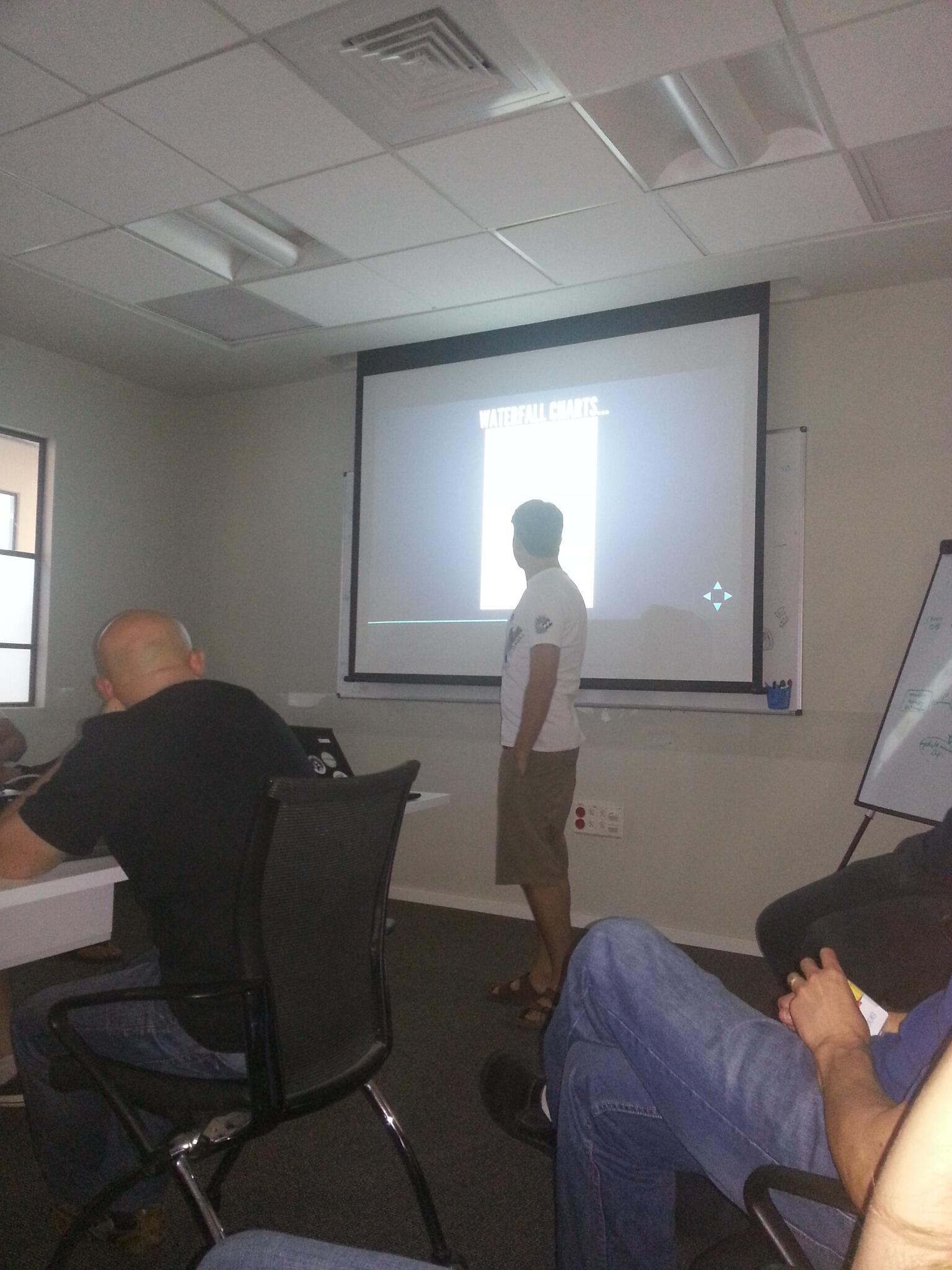
Wednesday, August 14, 2013

My talk on Latency & Client Side Performance

As an engineer in the 'Core team' of the company, we are responsible for making the site as available as we can, while having great performance and standing heavy load. We set high goals, and we're working hard to achieve them.

Up until a while ago, we were focusing mainly on server side performance - Looking at graphs under various load and stress tests, and seeing how the servers perform, each time making more and more improvements in the code.

A few weeks ago we started putting a lot of focus on latency and client side performance. I have taken control in this area and am following the results and creating tasks that will improve the performance every day.

Since I've been reading a lot about it lately, and working on it a lot, I decided to create a presentation on the subject to teach others some lessons learned from the short time I've been at it...

Here are the slides : http://slid.es/gillyb/latency

There are many details you'll be missing by just looking at the slides, but if this interests you than you should take a look anyway. The last slide also has many of the references from which I took the information for the presentation. I strongly recommend reading them. They are all interesting! :)

I might add some future posts about specific client side performance tips and go much more into details.
I'm also thinking about presenting this at some meetup that will be open to the public... :)

Saturday, July 27, 2013

Improving website latency by converting images to WebP format

A couple of years ago Google published a new image format called WebP (*.webp). This format is supposed to be much smaller in size, without losing from the quality (or at least no noticeable quality). You can convert jpeg images to webp without noticing the difference, with a smaller image file size and even support transparency.
According to Ilya Grigorik (performance engineer at google) - you can save 25%-35% on jpeg and png formats, and 60%+ on png files with transparency! (http://www.igvita.com/2013/05/01/deploying-webp-via-accept-content-negotiation/)

Why should we care about this ?
Your web site latency is super important! If you don't measure it by now, then you really need to start. In commerce sites it's already been proven that better latency directly equals more revenue (Amazon makes 1% more in revenue by saving 100ms).

How is this new image format related to latency ?
If your site has many images, then your average user is probably spending a fair amount of time downloading those images. Think of a site like pinterest which is mostly contrived of user based images, then the user is downloading many new images with each page view.
While on a PC at your home, with a DSL connection this might not seem like a lot, but we all know that a big percentage of our users are using mobile devices, with 3G internet connection, which is much slower and they suffer from much longer download times.

What are our options ?
Just converting all our images to WebP is clearly not an option. Why ? Well, some people in the world have special needs. In this case i'm referring to people with outdated browsers (We all know who they are!).
BUT, we can still let some of our users enjoy the benefit of a faster site, and this includes many mobile users as well!

We will need to make some changes to our site in order for us to support this, so lets see what we can do -
(Technical details on implementation at the end)

Option #1 - Server side detection :
When our server gets the request, we can detect if the user's browser supports webp, and if so reply with an html source that has '*.webp' image files in it.
This option comes with a major downside - You will no longer be able to cache the images on the server (via OutputCaching or a CDN like Akamai) since different users can get a different source code for the same exact page.

Option #2 - Server side detection of image request :
This means we can always request the same file name, like 'myImage.png'. Add code to detect if this client can support webp then just send it the same file but in webp format.
This option has a similar downside - Now we can cache the html output, but when sending the image files to the user we must mark them as 'non-cacheable' too since the contents can vary depending on the user's browser.

Option #3 - Client side detection :
Many big sites defer the downloading of images on the client only until the document is ready. This is also a trick to improve latency - It means the client will download all the resources they need, the browser will render everything, and only then start downloading the images. Again, for image intensive sites this is crucial, since it allows the user to start interacting with the site before waiting for the downloading of many images that might not be relevant at the moment.
This is done by inserting a client side script that will detect if the browser supports webp format. If so, you can change the image requests to request the *.webp version of the image.
The downside to this option is that you can only use it if the browser supports the webp format.
(btw - you can decide to go extreme with this and always download the webp version, and if the client doesn't support it, there are js decoders that will allow you to convert the image on the client. This seems a little extreme to me, and you probably will be spending a lot of time decoding in js anyway).


The gritty details -

How can we detect if our browser supports webp ?
Don't worry, there's no need here for looking up which browsers support webp and testing against a list. Browsers that support webp format should claim they do when requesting images. We can see this done by Chrome (in the newer versions) :
You can see in the request headers 'Accept: image/webp'

How do we do this on the client ?
In javascript we don't have access to the request headers, so we need to get creative.
There is a trick that can be done by actually rendering an image on the client, using base64 to store the image in the code, and then detect if the browser loaded the image successfully.
This will do the trick :
$("")
    .attr('src', 'data:image/webp;base64,UklGRh4AAABXRUJQVlA4TBEAAAAvAQAAAAfQ//73v/+BiOh/AAA=')
    .on("load", function() {
        // the images should have these dimensions
        if (this.width === 2 || this.height === 1) {
            alert('webp format supported');
        }
        else {
            alert('webp format not supported');
        }
    }).on("error", function() {
        alert('webp format not supported');
    });


How do we convert our images to webp format ?
We can do it manually using Google's converter - https://developers.google.com/speed/webp/docs/cwebp
Doing it programatically depends on what language you're using.
There's a wrapper for C# - http://webp.codeplex.com/
(and there are more for other languages, but not all - I'm actually looking for a java wrapper, and couldn't find one yet)


So, should I run ahead and do this ?
All this good does come with a price, as all good things do... :)
There might be side affects you didn't think of yet. Some of them being the fact that if a user sends a link to an image that ends with webp and the user that receives this is using a browser that doesn't support it, then they won't be able to open the image.
More what, even if the user does use a new browser (e.i.: a new version of Chrome) and they save a webp file to disk, they probably won't be able to open it on their computer.
These are problems that facebook ran into, and eventually retreated from the idea of using webp. You can read all about that here.

Which browsers did you say support this ?
According to www.caniuse.com - Chrome has obviously been supporting it for a while. Opera also supports it, and FireFox is supposed to start supporting this really soon as well. The most important news is that Android browsers, Chrome for Android and Opera mobile all support this which means many of your mobile users can gain from this change.


If you're still reading and want more information -
- Ilya Grigorik explains how to implement this using your CDN and NginX
- An excellent presentation on web image optimization by Guy Podjarny

Sunday, February 17, 2013

Getting started with nodejs - building an MVC site

A couple of weeks ago I started getting into nodejs. At first I was quite skeptic, I don't even recall why, but after playing with it for just a couple hours I started loving it. Seriously, It's so simple to use, and it seems like the nodejs eco-system is growing really fast. I'm not going to go into what nodejs is or how it works, so if you don't know, you should start by reading this.

What I am going to show here, is a really quick and simple tutorial as to how to get started building a website on nodejs using the MVC design pattern. I'll go over the quick installation of nodejs and walk through getting the very basic mvc wireframe website up and running.
(Since I've been a .net developer for quite a while, I might be comparing some of the terms used to the terminology .net programmers are familiar with)

Installing nodejs
First, download and install nodejs.
On ubuntu, this would be :
sudo apt-get install nodejs
(If your ubuntu version is lower than 12.10 than you need to add the official PPA. Read this)

Now, you need to install the npm (nodejs package manager) :
sudo apt-get install nodejs npm
This will help us install packages built for nodejs. (exactly like 'Nuget' for Visual Studio users).

Starting our website
I've looked up quite a few mvc frameworks for nodejs, and I would say that the best one, by far, is expressjs. It's really easy to use and it's being actively updated.

Create a directory for your website, navigate their in the terminal, and type
sudo npm install express

Now we need to tell nodejs how to configure our application, where are the controllers/models/views, and what port to listen to...

Create a file called index.js in the website directory you created -

First things first :
var express = require('express');
app = express();

This defines 'app' as our expressjs web application, and gives us all the cool functionality that comes with the expressjs framework.

After that we need to configure our application :
app.configure(function() {
    app.set('view engine', 'jade');
    app.set('views', __dirname + '/views');
    
    app.use(express.logger());
    app.use(express.bodyParser());
    app.use(express.cookieParser());

    app.use(express.static(__dirname + '/scripts'));
    app.use(express.static(__dirname + '/css'));
    app.use(express.static(__dirname + '/img'));

    app.use(app.router);
});


The first two lines tells express we're going to use the 'jade' view engine to render our views. (This is like 'razor' but a little different, for people coming from the .net mvc). You can read about how the view engine works over here. The next 3 lines tell express to use certain middleware. ('middleware' are like 'filters' in the asp.net mvc world) middleware intercept each request, and can do what it wants, including manipulating the request. Basically, each middleware is a method being called with the request object, response object, and 'next' object respectively.
The 'next' object is a function that calls the next middleware in line.
All the middleware are called in the same order that they are defined. The middlewares I use here are basic middlewares that comes with the expressjs framework, and just make our life much easier (by parsing the request object, the cookies to our request/response objects and logging each request for us).

The final 3 lines of code, tell expressjs which directories have static files in them. This means that each request to a filename that exists in one of these files will be served as static content.
Note : if we put a file called 'main.css' in the '/css' folder, we request it by going to http://ourdomain.com/main.css and NOT by going to http://ourdomain.com/css/main.css. (This got me confused a little at first...)

After all that, we need to add our models and controllers...
require('./models');
require('./controllers');
The nodejs default when requiring a directory is to look for the file 'index.js' in that directory, so what I did is create an index.js file in each of those directories, and inside it just add a couple of 'require()' calls to specific files in that directory.

For models you can create javascript object however you like. On the projects I'm working on, I started using mongoose - which is like an ORM for mongodb. It's really simple to use, but I won't go into it for now...

Finally, in our init.js file, we need to tell our app to listen to a certain port -
app.listen(8888);

Controllers
Defining controllers is really easy with express - Each 'action' is a method, defined by GET or POST, the url (which can include dynamic parameters in it), and the function to call. A typical controller looks like this :
app.get('/about', function(request, response) {
    // just render the view called 'about'
    // this requires us to have a file called 'about.jade' in our 'views' folder we defined
    response.render('about');
});

app.get('/user/:userId', function(request, response) {
    // userId is a parameter in the url request
    response.writeHead(200); // return 200 HTTP OK status
    response.end('You are looking for user ' + request.route.params['userId']);
});

app.post('/user/delete/:userId', function(request, response) {
    // just a POST url sample
    // going to this url in the browser won't return anything..

    // do some work...
    response.render('user-deleted'); // again, render our jade view file
});


So, that's the end of this. It's really basic I know, but I hope it will help you get started... :)
The main idea of this post was to show just how easy it is to get started with nodejs.
I think I will be posting a lot more about nodejs in the near future! :)

Have fun! :)

Thursday, January 31, 2013

Problems with Google Analytics


Most of the Google utilities I use are great - they usually have an intuitive design that make them frictionless and have most of the features someone needs. The features they have usually work as expected too, which isn't trivial with some other competing utilities.

Lately I've been using Google Analytics and the truth is, I don't like what I see... :(

The most annoying part of using Google Analytics is that there's no way of testing it!
It would seem like a trivial feature to me, but apparently not to the people at Google. Maybe most people don't have this problem, since you set up the analytics reports when first designing the website, and then the testing process is done on your production environment which could be really easy, and if you have no stats, then you obviously have nothing to ruin.
When I was trying to make some of the most minor changes to the way we report some of the stuff on the website I work on at my job, the first thing that interested me was how I was going to test the changes.

When you have many users in production, there's no chance you'll notice the change you made when you login. Even if you would, I could by accidentally affect other analytics and I was obviously afraid to do so. So, I set up a test account, and tried reporting to the test account from my local machine. This didn't work since Google makes sure you make the request from the domain you registered in the GS (Google Analytics) account, which is great! After looking into this a little, I found out that I can tell GA to ignore the domain that the request is coming from so that this will work. From their documentation, this feature was meant to be for using multiple subdomains, but it works for reporting from any domain. Since this helped my cause, and I'm not afraid of others causing harm to my test account, I won't go into why this is a bad idea, and can be harmful to some other sites using this... :/
After doing all that, I came to realize that the analytics aren't reported in real time, which is also logical, since an analytics system usually needs to deal with large amounts of data, and it takes time to handle the load. (Not only it's not real-time, but it's pretty far from being almost real-time as well) BUT, this doesn't mean there shouldn't be a way around this for testing, like an option I could turn on, just so the reports effect will be seen in real time, even if it's limited for a really small number, just for testing!

In case someone reading this ran into the same problem - The configuration setting I used like this :
_gaq.push(['_setDomainName', 'none']);


By the way - From my experience with the Adobe Omniture utility, they have a great 'debugging' utility that you can use a bookmarklet. It opens on any site, and shows you the live reports going out, which is a GREAT tool for testing, and should've been implemented by Google in the same way.

Another issue I had (and frankly, still have) with GA, is that some of their documentation isn't full... For example : There are some pages (like 'Page Timings') where you can view the stats of different pages, and the average. You can sort this list by 'page title' or some other parameters. The problem is that when you have many pages that are the same, but with dynamic content (meaning all the 'page titles' are different), you might want to group them by a 'user defined variable' that you report on that page.
Great! You have this option. ...BUT, in the documentation, the way you report a 'User defined variable' is by using the '_setVar' method. It continues on by stating that the '_setVar' method is soon to be deprecated and they don't recommend using it. Instead you should '_setCustomVar'. The problem here is that 'Custom Var' and 'User Defined Variable' aren't the same, and in some pages you can view one and in some the latter. There is no documentation anymore for the '_setVar' method, so I searched various blogs about people writing about this in the past, and found the way to use it, but it works in a different way, and I couldn't find a way to define it's lifespan (per session/page/user/etc.) like you can do with '_setCustomVar'.

Long story short... It seems like they have quite some work to do on this before it's perfect, or close to being perfect, and I'm not 100% I'll be using this again as a full site solution for web page analytics.

Friday, January 18, 2013

It's time for yet another change...


I started out programming ~13 years ago, when I was only 12 years old. The first language I learned was VB. I was building some small winforms utilities for myself. Then (about a year after) I started learning php and went into web development, building some dynamic websites (mostly php & MySQL) for the next 6-7 years...

Once I drafted to the military (mandatory in Israel), I did some programming for the Air Force. It was then when I got into the .net world, and was doing most of the programming in C#. I got used to it really fast, and learned to like it, so after the military (~3.5 years), I went on to work for ICC (the Israeli VISA company) as a .net programmer for 2 and a half years. After that I immediately got a job for Sears Israel, mostly developing in C# but also doing some java.

The past couple of years I learned a lot of new technologies and new programming paradigms, but it was mostly using the Microsoft platform. I didn't get to work with other programming languages, not to mention working on Linux platforms...

So... I think it's time for yet another change... :)
I'm not talking about quiting my job (note to my employer: no need to worry yet), but I'm talking about learning some new languages and technologies on my own. I'm not kidding anyone here - I've been programming since a young age and have been loving every moment of it. I do it a lot at home and a lot in my spare time just for fun!
I recently decided that I will dedicate my spare time to learning some new technologies and new languages. I'm sure, even this won't pay off immediately at work, the knowledge I will be gaining will still be priceless and will definitely help me in the future, possible even at my current work place.

First step - A couple of weeks ago I installed Linux on my home computer. I went for the Ubuntu distribution, since I heard it's the most user-friendly, and this way I could hit the ground running.
It's only been a couple of weeks, and I already know how to do everything I need from the terminal. Manage my files, install new packages and even work with vim. Seriously, if I didn't need a web browser, I would be installing the server version. Now, I started copying all my old files I want to backup from my Windows installation, and planning on removing Windows all together.

Next steps - I decided I need to learn new technologies as well. Recently reading about nodejs a lot got me really excited and so I started learning it. I also figured it would be easy for me to get into, since after years of web development I can say I know a fair amount of javascript.
I'm already working on a small project just for myself which is coming out really cool (might blog about this soon). I'm working with the expressjs mvc framework, jade view engines, stylus and even implementing OpenId in javascript!

I'm always thinking about how I can use this information to leverage some utilities we have at work... :) Every programming language has its strengths and it's all about choosing the right tool for the job.

What's next ? Well, I think after I finish my project in nodejs I'll go onto learning python which has also been interesting me for a quite a while now...
I already read a lot about it, and now I just need to get my hands dirty a bit too.

In conclusion I will say that learning new technologies is always a good idea, can always be a lot of fun, will always give you new tools to deal with everyday problems and put you ahead of many other programmers that are 'stuck with the same technology for years'. I already feel I have quite the experience - programming in VB, php, C#, javascript, using MySQL, Oracle, SQL Server, (and many frameworks within each language) and having at least a couple of years of experience with each of these. I really believe this puts me ahead of most, especially when it comes to solving new problems - I have a better point of view then others and a lot of experience to lean on.

Monday, January 14, 2013

Some good to know C# attributes


Just felt like writing about a couple of C# framework attributes that I happened to use lately, and not enough programmers know about (in my opinion, and this usually surprises me).

The first (and the name of my blog) :
DebuggerStepThroughAttribute
This attribute can be used to tell the debugger not to "step-into" a piece of code, and instead, it will skip over it. The best use for this that I can think of is when using an IoC/AOP framework and you have method interceptors, debugging can be a big pain in the ass... You keep on going through each interceptor, on every method call!
All you need to do is add [DebuggerStepThrough] above your interceptor, and the code won't be debugged.
e.g.:
[DebuggerStepThrough]
public class DontDebugInterceptor : IInterceptor
{
    // do something...
}

DebuggerDisplayAttribute
This attribute is used to tell the debugger what to display when in the 'Watch' window or when hovering over the variable in debug mode. Most people know that if you override the 'ToString()' method than you get the same effect, but sometimes this just isn't possible, since you might need the 'ToString()' method for something else.
All you need to do is add [DebuggerDisplay('Some string representation')] to the field/property/class you want to modify. You can also evaluate code inside the string given to the attribute constructor, just by wrapping it with curly braces.
e.g.:
[DebuggerDisplay('This class is : {OutputClass()}')]
public class MyClass
{
    private string OutputClass()
    {
        return "Whatever you want here...";
    }
}